Control Claude Code from iPhone with SSH + Zellij (Free)
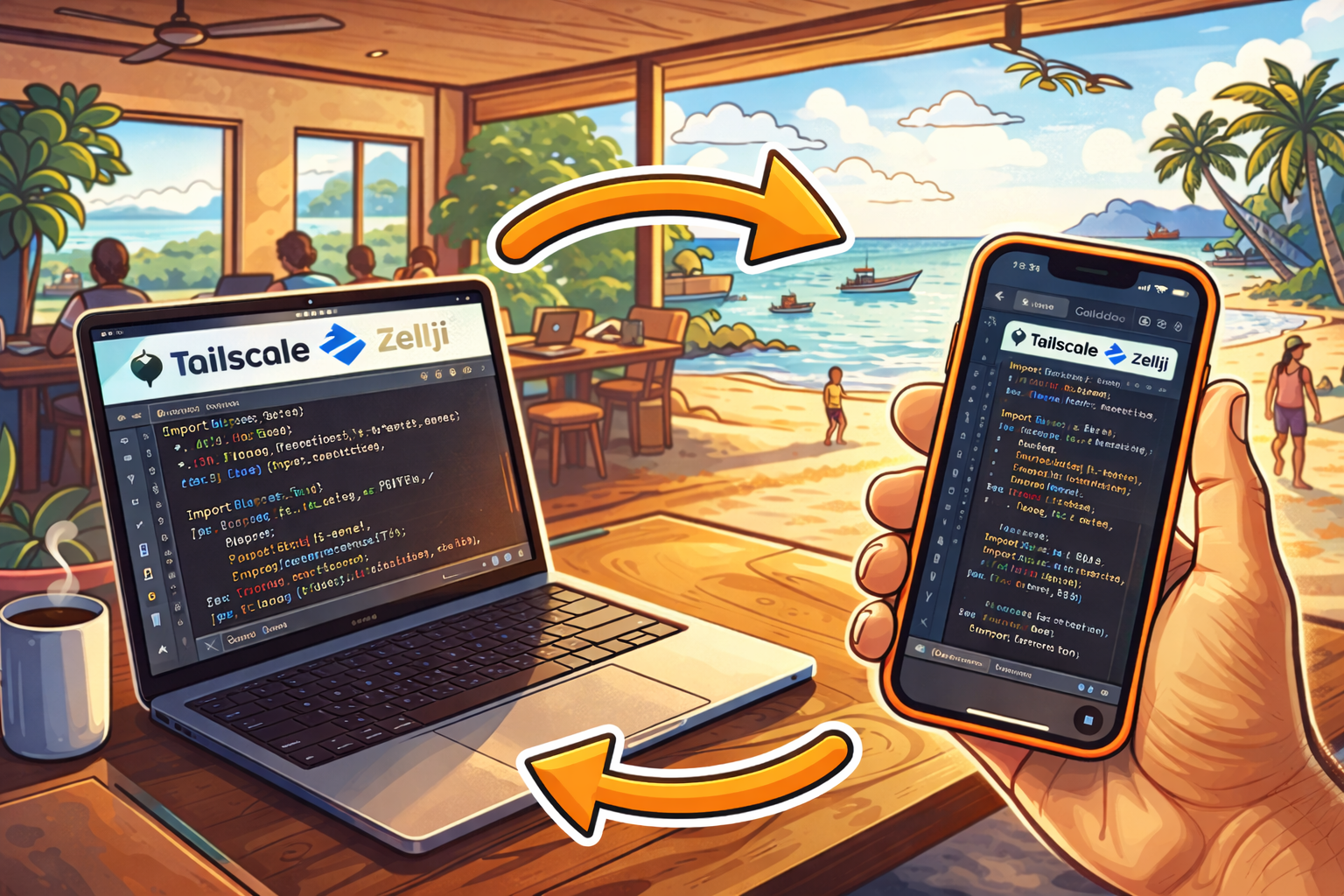
Run Claude Code remotely from your iPhone or iPad via SSH. Sessions persist even when you disconnect—pick up exactly where you left off.
TL;DR: Install Tailscale + Zellij + mosh on your Mac. SSH in from Blink or Termius on your phone. Sessions survive disconnects. ~20 minutes to set up.
Want push notifications when Claude needs input? See Push Notifications for Claude Code with ntfy.
When I say “we” throughout this post, I mean me and Claude Code. Claude helped research, write configs, and debug issues.
The Stack
| Tool | Purpose |
|---|---|
| Tailscale | Secure VPN mesh to access your Mac from anywhere |
| Zellij | Terminal multiplexer with persistent sessions |
| mosh | Network-resilient SSH (handles spotty mobile connections) |
Prerequisites
- A Mac that stays on (desktop or laptop with lid open)
- Homebrew installed
- Claude Code installed and working locally
- An iPhone or iPad with Blink Shell or Termius
Time to complete: ~20 minutes.
Quick Start
1. Install the Basics
brew install tailscale zellij moshSet up Tailscale:
tailscale upFollow the auth link. Note your Mac’s Tailscale IP (looks like 100.x.x.x).
Verify:
tailscale status
# Should show your device and IP
2. Enable Remote Login on Mac
System Settings → General → Sharing → Remote Login → Enable
Only enable for your user account, not “All users.”
3. Set Up SSH Directory
mkdir -p ~/.ssh
chmod 700 ~/.ssh
touch ~/.ssh/authorized_keys
chmod 600 ~/.ssh/authorized_keys
Verify:
ls -la ~/.ssh/
# Should show drwx------ for .ssh and -rw------- for authorized_keys
4. Configure Zellij
Create/edit ~/.config/zellij/config.kdl:
// macOS clipboard fix - Terminal.app doesn't support OSC 52
copy_command "pbcopy"

// Clean UI - maximizes screen space for phone screens
default_layout "compact"
pane_frames false

// Session persistence - survives restarts
session_serialization true

// Large scroll buffer - Claude outputs lots of text
scroll_buffer_size 50000

// Theme
theme "one-half-dark"
Verify:
zellij
# Should open with minimal UI
# Press Ctrl+q to exit
5. Create a Claude Layout
Save to ~/.config/zellij/layouts/claude.kdl:
layout {
    pane command="zsh" {
        args "-ic" "claude"
    }
}
Verify:
zellij --layout claude
# Should open Zellij with Claude Code running
# Press Ctrl+q to exit
6. Shell Commands for Session Management
Add to ~/.zshrc:
# rc = Run Claude: Start new session with auto-generated name
rc() {
    local session_name="claude-$(date +%m%d-%H%M)"
    zellij --session "$session_name" --layout claude
}

# rj = Run Join: Quick attach to session
rj() {
    local session="${1:-$(zellij list-sessions | head -1 | awk '{print $1}')}"
    zellij attach "$session"
}

# rl = Run List: Interactive session picker with cleanup
rl() {
    local sessions=()
    while IFS= read -r line; do
        sessions+=("$line")
    done < <(zellij list-sessions 2>/dev/null)

    if [[ ${#sessions[@]} -eq 0 ]]; then
        echo "No sessions. Use 'rc' to start one."
        return 1
    fi

    echo "Sessions:"
    local i=1
    for session in "${sessions[@]}"; do
        echo "  $i) $session"
        ((i++))
    done
    echo "  c) Clean EXITED sessions"
    echo "  d) Delete sessions >24h old"

    read -r "choice?Select: "

    case "$choice" in
        c)
            local deleted=0
            for line in "${sessions[@]}"; do
                if [[ "$line" == *"EXITED"* ]]; then
                    local name=$(echo "$line" | awk '{print $1}')
                    zellij delete-session "$name" 2>/dev/null && ((deleted++))
                fi
            done
            echo "Deleted $deleted exited session(s)"
            ;;
        d)
            local deleted=0
            for line in "${sessions[@]}"; do
                if [[ "$line" == *"day"* ]]; then
                    local name=$(echo "$line" | awk '{print $1}')
                    zellij delete-session --force "$name" 2>/dev/null && ((deleted++))
                fi
            done
            echo "Deleted $deleted session(s) older than 24h"
            ;;
        [0-9]*)
            local name=$(echo "${sessions[$choice]}" | awk '{print $1}')
            zellij attach "$name"
            ;;
    esac
}
Reload and test:
source ~/.zshrc
rc  # Should create session like "claude-0106-1430"
# Detach with Ctrl+o, d
rl  # Should show your session in the list
Mobile App Setup (Blink/Termius)
SSH Keys for Passwordless Login
Generate a key in your iOS app and add it to your Mac:
Blink Shell:
- In Blink:
config→ Keys → Generate new key - Copy the public key
- On your Mac:
echo "ssh-ed25519 AAAA... blink@iphone" >> ~/.ssh/authorized_keysTermius:
- Settings → Keychain → Generate Key
- Export public key
- Add to Mac’s
~/.ssh/authorized_keyssame as above
Verify keys work:
# From your phone, try SSH (not mosh yet)
ssh yourusername@your-mac-tailscale-ip
# Should connect WITHOUT asking for password
mosh Server Path
mosh on iOS apps needs a custom server command (Homebrew installs to non-standard path):
Blink Shell — add to ~/.ssh/config:
Host mac
  HostName your-mac.tailnet
  User yourusername
  Mosh /opt/homebrew/bin/mosh-server new -s -c 256 -l LANG=en_US.UTF-8
Termius — in connection settings, set mosh server command:
/opt/homebrew/bin/mosh-server new -s -c 256 -l LANG=en_US.UTF-8Optional: Auto Dark Mode
Sync Zellij theme with macOS appearance:
brew install dark-notify

mkdir -p ~/.config/zellij/scripts
cat > ~/.config/zellij/scripts/toggle-theme.sh << 'EOF'
#!/bin/bash
CONFIG="$HOME/.config/zellij/config.kdl"
if [ "$1" = "dark" ]; then
    sed -i '' 's/^theme .*/theme "one-half-dark"/' "$CONFIG"
else
    sed -i '' 's/^theme .*/theme "one-half-light"/' "$CONFIG"
fi
EOF
chmod +x ~/.config/zellij/scripts/toggle-theme.sh

cat > ~/Library/LaunchAgents/com.zellij.dark-notify.plist << EOF
<?xml version="1.0" encoding="UTF-8"?>
<!DOCTYPE plist PUBLIC "-//Apple//DTD PLIST 1.0//EN" "http://www.apple.com/DTDs/PropertyList-1.0.dtd">
<plist version="1.0">
<dict>
    <key>Label</key>
    <string>com.zellij.dark-notify</string>
    <key>ProgramArguments</key>
    <array>
        <string>/opt/homebrew/bin/dark-notify</string>
        <string>-c</string>
        <string>$HOME/.config/zellij/scripts/toggle-theme.sh</string>
    </array>
    <key>KeepAlive</key>
    <true/>
    <key>RunAtLoad</key>
    <true/>
</dict>
</plist>
EOF

launchctl load ~/Library/LaunchAgents/com.zellij.dark-notify.plist
Daily Workflow
-
Start a session on your Mac:
rc # Creates claude-0106-1430 session -
SSH in from phone via mosh + Tailscale:
mosh mac # Then: rl to pick session -
Work on Claude tasks, detach when done (Ctrl+o, d)
-
Reconnect later — session is exactly where you left it
Troubleshooting
| Issue | Fix |
|---|---|
| Copy not working in Terminal.app | Add copy_command "pbcopy" to Zellij config |
| Sessions showing as “active” when deleting | Use --force flag with zellij delete-session |
| mosh “server not found” | Add custom server path (see Mobile App Setup) |
| SSH asks for password | Check ~/.ssh/authorized_keys permissions (600) |
Security
SSH Hardening
After confirming key-based login works, disable password authentication:
# Edit /etc/ssh/sshd_config (requires sudo)
# Set:
# PasswordAuthentication no
# ChallengeResponseAuthentication no

sudo launchctl stop com.openssh.sshd
sudo launchctl start com.openssh.sshd
Tailscale ACLs
For extra lockdown, configure Tailscale ACLs to restrict which devices can SSH to your Mac. See Tailscale ACL docs.
FAQ
Can I use this without Tailscale?
Yes, but you’d need to configure port forwarding and expose your Mac to the public internet. Tailscale keeps everything private with zero config.
Does this work on iPad?
Yes. Same setup—Blink or Termius on iPad connects the same way.
What if I close my laptop lid?
Sessions persist in Zellij, but your Mac needs to stay awake. Use Amphetamine or disable sleep in System Settings.
Can I run multiple Claude sessions?
Yes. Use rc to start each session (auto-named by timestamp). Use rl to switch between them.
Next Steps
- Add push notifications — Get notified when Claude needs input: Push Notifications for Claude Code with ntfy
- Try the Happy app — A polished mobile UI instead of terminal: Self-Host Happy Server
Links
- Zellij — Terminal multiplexer
- Tailscale — Zero-config VPN
- mosh — Mobile shell
- Blink Shell — iOS terminal
Questions? Find me using the links on the left or in my site’s menu.